
Ellan
Joined - December 2025

Is your laptop slow, overheating, freezing, running out of storage, taking forever to start, or refusing to start properly?
Before paying for a repair, learn how to identify what may be wrong and try the safest fixes yourself.
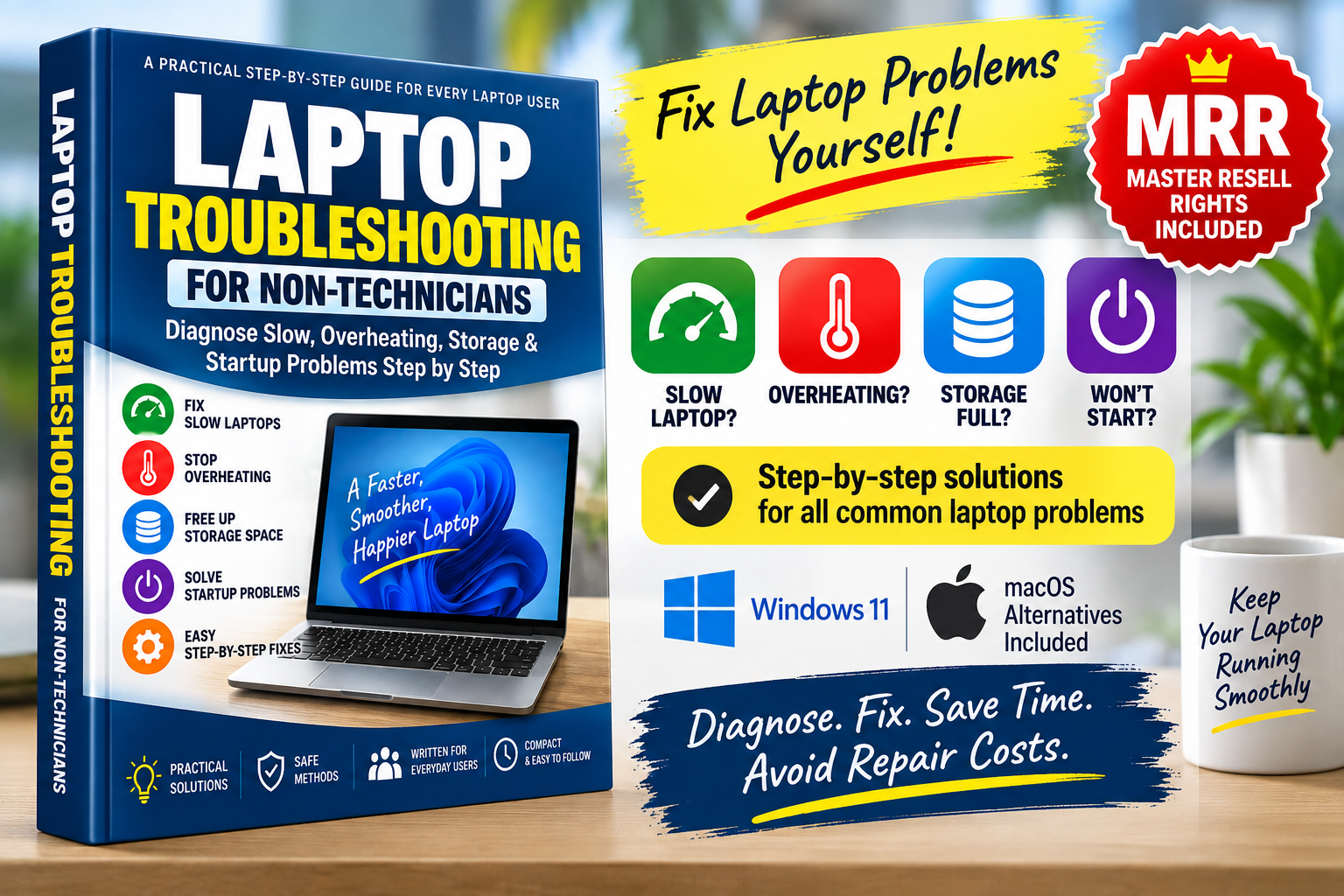
Laptop Troubleshooting for Non-Technicians is a practical, beginner-friendly troubleshooting manual designed for ordinary laptop users — not IT technicians.
Instead of overwhelming you with computer theory and technical jargon, it walks you through common laptop problems using simple checks, step-by-step fixes, decision trees and quick diagnostic procedures.
Whether you use your laptop for work, school, freelancing, business or everyday tasks, this compact guide gives you a practical first place to look when something goes wrong.
Use the manual when you're dealing with common questions such as:
Why is my laptop suddenly so slow?
Why does my laptop keep freezing?
Why is my laptop overheating?
Why is my laptop fan constantly running?
Why is my laptop storage always full?
What is taking up so much space?
Why does my laptop take so long to start?
Why does Windows take forever to load?
Why does my laptop turn on but show a black screen?
Why does my laptop keep restarting?
How do I find which program is slowing down my laptop?
How can I speed up my laptop without installing questionable "cleaner" software?
Should I repair, upgrade or replace my laptop?
The objective isn't to turn you into a technician.
It is to help you understand the symptom, perform sensible checks, try low-risk solutions and recognize when professional repair is the safer choice.
Not sure what is causing the problem?
Start here.
The manual takes you through a quick health check covering:
✓ Available storage
✓ CPU activity
✓ RAM/memory usage
✓ Disk activity
✓ Resource-heavy applications
✓ Startup applications
✓ Operating-system updates
✓ Overheating signs
✓ Fan behaviour
✓ Blocked ventilation
✓ Application-specific problems
✓ Battery swelling and physical damage
You can then move directly to the troubleshooting section that matches your symptoms.
Instead of simply telling you to "check Task Manager," the guide explains what to look for and what the numbers actually mean.
Learn how to investigate:
CPU usage — Is an application putting too much load on the processor?
Memory/RAM usage — Are your open programs consuming most of your laptop's working memory?
Disk activity — Is storage activity contributing to the slowdown?
Low storage — Is your system drive running out of usable space?
Startup applications — Are unnecessary programs automatically loading every time you start your laptop?
You'll also get a practical 10-Minute Slow Laptop Rescue Procedure that takes you through the safest actions in the correct order.
A hot laptop isn't always broken - but persistent overheating shouldn't be ignored.
Use the included 5-Minute Overheating Test to check:
✓ Laptop placement
✓ Blocked ventilation
✓ Heavy applications
✓ CPU activity
✓ Fan behaviour
✓ Whether reducing workload improves the problem
You'll also learn what thermal throttling means and why an overheating laptop may suddenly become slower.
The guide clearly explains what you can safely check yourself and what should be left to a qualified technician.
Stop randomly deleting files.
The 15-Minute Storage Rescue shows you how to investigate what is actually consuming your storage and recover useful space more safely.
Learn how to check:
Temporary files
Downloads
Large personal files
Installed applications
Videos
Recycle Bin/Trash
Cloud-synced files
Windows Storage settings
macOS Storage management
You'll also find two particularly useful sections:
and
So you're less likely to create a bigger problem while trying to free space.
Learn how to investigate common causes such as:
✓ Too many startup applications
✓ Low storage
✓ Pending software updates
✓ Background applications
✓ Aging storage drives
✓ Malware
✓ Older hardware
The guide also explains an important distinction:
Disabling an application from startup does NOT mean uninstalling it.
You can stop certain non-essential applications from launching automatically while keeping them installed.
Startup problems can have very different causes.
That's why the guide separates troubleshooting into situations such as:
Laptop has no power at all
Power light comes on but nothing displays
Laptop turns on but Windows/macOS doesn't load
Laptop gets stuck on the manufacturer logo
Laptop shows a black screen
Laptop keeps restarting
Laptop enters a repair/recovery screen
Laptop displays an error during startup
Instead of immediately recommending a reset or operating-system reinstall, the manual starts with conservative checks and built-in recovery options.
Potentially destructive recovery actions are clearly identified so you know when to stop and protect your files.
The manual primarily uses Windows 11, including practical guidance for tools such as:
Task Manager
Storage settings
Startup Apps
Windows Recovery Environment
Startup Repair
Where procedures differ significantly, separate macOS alternatives explain relevant tools such as:
Activity Monitor
Storage management
Login Items
macOS Recovery
So the instructions remain easy to follow rather than mixing the two operating systems together.
The guide includes quick-reference troubleshooting cards for:
They're designed for quick reference when you don't want to read the entire manual.
Open the relevant card, run through the checks and decide what to do next.
Sometimes software troubleshooting isn't the real solution.
The manual helps you understand when it may be worth investigating:
RAM upgrade — when limited working memory may be restricting performance.
SSD upgrade — particularly for compatible older laptops still using a mechanical hard drive.
Internal cleaning/service — when persistent overheating points toward a cooling problem.
Battery replacement — when battery condition becomes a concern.
Professional diagnosis — when symptoms suggest a deeper hardware fault.
Laptop replacement — when repeated repairs, unsupported software or aging hardware make further investment questionable.
Hardware varies, so the guide avoids pretending that every laptop can be upgraded in the same way.
One of the most valuable things a non-technician can know is when not to continue.
The guide highlights serious warning signs including:
⚠️ Swollen battery
⚠️ Burning smell
⚠️ Smoke or sparks
⚠️ Liquid damage
⚠️ Extreme heat with shutdowns
⚠️ Grinding or clicking from a mechanical drive
⚠️ Important inaccessible files
⚠️ Major impact/drop damage
⚠️ Burned or damaged charging hardware
When these appear, the goal changes from "fix it yourself" to protect yourself, the laptop and your data.
Don't wait until the laptop becomes unusable.
Use the included 10-Minute Monthly Laptop Health Routine to regularly check:
✓ Free storage
✓ OS and security updates
✓ Startup applications
✓ Unused applications
✓ Ventilation
✓ Important-file backups
✓ Security status
✓ Charger and cables
✓ Fan behaviour
✓ Battery condition
✓ Startup performance
A little preventive maintenance can help you notice developing problems earlier.
This guide is particularly useful for:
Students who depend on laptops for assignments and online learning.
Freelancers and remote workers who cannot afford unnecessary downtime.
Small-business owners who rely on their computers every day.
Office workers experiencing slow or unreliable laptops.
Home users who want straightforward troubleshooting instructions.
Second-hand laptop owners who want to better understand their machines.
Anyone who normally says, "I don't know anything about computers."
No advanced IT knowledge is required.
When you purchase Laptop Troubleshooting for Non-Technicians, you receive a compact digital troubleshooting manual featuring:
✓ Step-by-step laptop troubleshooting
✓ 5-minute laptop health check
✓ 10-minute slow-laptop rescue
✓ Freezing and lag diagnosis
✓ 5-minute overheating test
✓ 15-minute storage rescue
✓ Startup troubleshooting
✓ Windows 11 guidance
✓ macOS alternatives
✓ Symptom diagnostic table
✓ Quick troubleshooting cards
✓ Repair vs upgrade vs replace guidance
✓ Safety/red-flag checklist
✓ Monthly maintenance routine
✓ Emergency troubleshooting cheat sheet
✓ Essential computer terms explained simply
Digital PDF format — keep it on your phone or computer for quick reference whenever a laptop problem appears.
This isn't only a guide you can use.
Your purchase includes applicable Vezill Master Resell Rights (MRR), allowing you to resell the digital product according to the Vezill MRR terms.
That creates two potential uses from one purchase:
Use the guide yourself to understand common laptop problems and basic troubleshooting.
List/share the eligible product through Vezill and earn from qualifying sales according to the platform's current seller and MRR terms.
Where the applicable MRR licence permits it, buyers can receive the corresponding right to resell the product.
That can increase the product's utility for customers who are interested in both learning a useful skill and selling digital knowledge products.
Laptop problems aren't limited to computer technicians.
Millions of people use laptops for:
Work.
School.
Business.
Freelancing.
Remote jobs.
Online learning.
Entertainment.
And common questions continue to arise:
"Why is my laptop slow?"
"Why is my laptop overheating?"
"How do I free up laptop storage?"
"Why is my laptop taking so long to start?"
"Why is my laptop showing a black screen?"
This manual packages answers to these recurring problems into a structured, beginner-friendly troubleshooting resource.
Instead of selling vague information, you're selling a specific practical outcome: helping ordinary laptop users understand and troubleshoot common problems.
and
You don't need to create a laptop troubleshooting manual from scratch.
The product is already structured around a real, recurring consumer problem.
Learn how to:
CHECK → DIAGNOSE → TRY THE SAFE FIX → TEST → KNOW WHEN TO GET HELP
Keep the guide on your phone so it's available the next time your laptop slows down, overheats, freezes, fills its storage or refuses to start properly.
Instant digital access • Beginner-friendly • Practical troubleshooting • Windows 11 + macOS guidance • Vezill MRR included
Buy now and start with the 5-Minute Laptop Health Check.
Get the updates, on newly released, popular & fast-moving MRR digital products
Up to Top



Comments