
Ellan
Joined - December 2025

Slow Wi-Fi can make everything frustrating.
Your videos keep buffering. Zoom or Teams calls freeze. The internet works in the living room but barely reaches the bedroom. Your laptop connects while your phone refuses to connect. Or your device shows “Connected to Wi-Fi” but you still can't access the internet.
The biggest problem is often not knowing what is actually wrong.
Is it your internet provider?
Your router?
Poor Wi-Fi coverage?
Interference?
Too many connected devices?
Your phone or laptop?
Or simply where you've positioned the router?
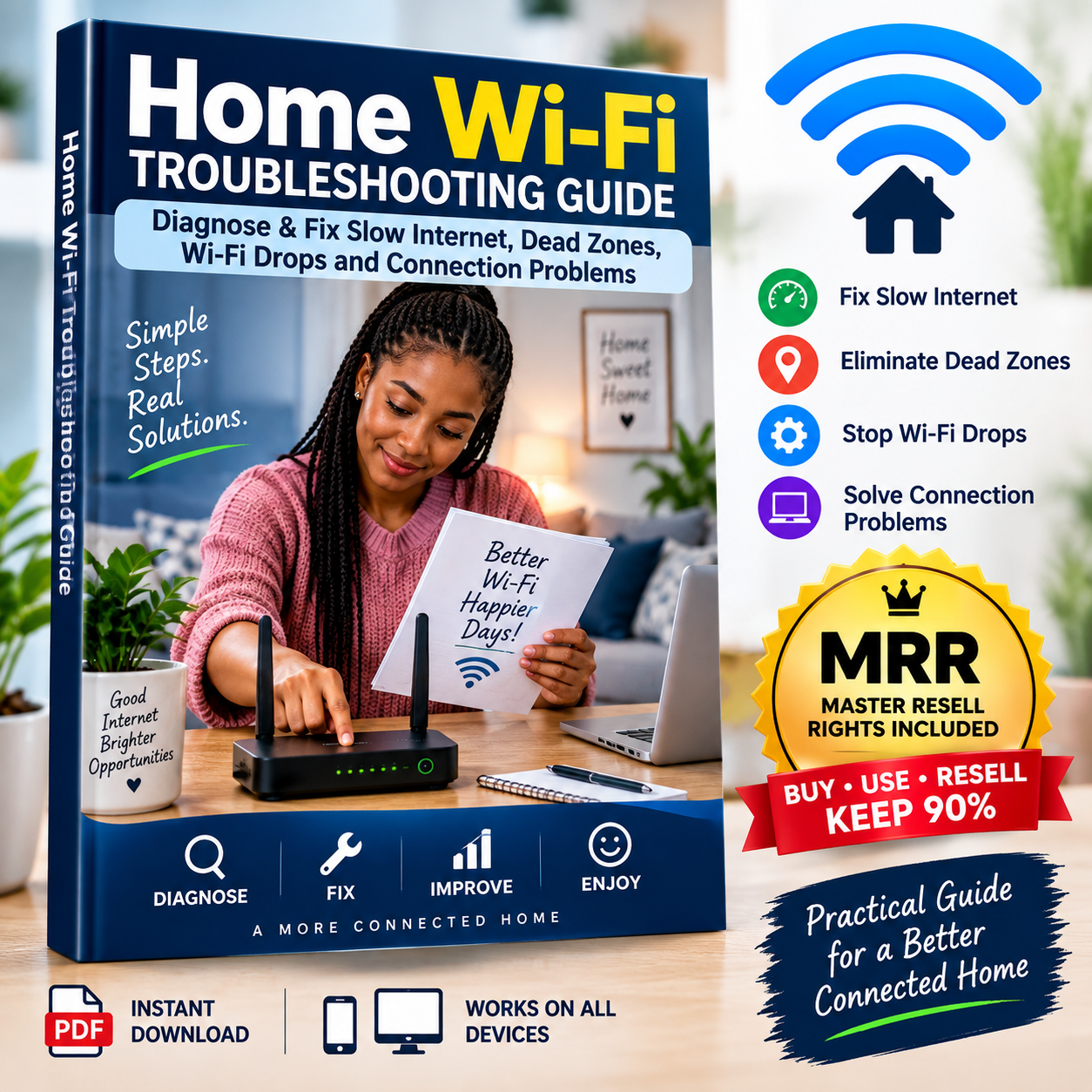
The Home Wi-Fi Troubleshooting Guide gives you a simple, practical system for finding the likely cause and applying the appropriate fix — even if you know almost nothing about computer networking.
PROBLEM → TEST → IDENTIFY → FIX → RETEST
No complicated networking textbook.
No random trial and error.
Just practical troubleshooting you can follow at home.
Use the guide when you're experiencing problems such as:
✓ Slow Wi-Fi or slow internet
✓ Wi-Fi dead zones around your home
✓ Weak Wi-Fi signal in bedrooms or upstairs
✓ Wi-Fi that keeps disconnecting
✓ “Connected to Wi-Fi but no internet”
✓ Streaming that keeps buffering
✓ Frozen or unstable Zoom, Teams and video calls
✓ High ping or lag while gaming
✓ A phone or laptop that won't connect to Wi-Fi
✓ Wi-Fi password and authentication problems
✓ Poor router placement
✓ Wi-Fi interference
✓ Network congestion from multiple devices
✓ Confusion between 2.4 GHz, 5 GHz and 6 GHz
✓ Not knowing whether you need a Wi-Fi extender, mesh system or new router
Many people respond to poor Wi-Fi by immediately restarting everything, changing random router settings, upgrading their internet package or buying another router.
But those actions may not address the actual problem.
This guide teaches you how to narrow it down.
For example:
Internet is fast beside your router but slow in the bedroom?
That points toward a Wi-Fi coverage or interference problem.
Internet is slow even through Ethernet?
The problem may be upstream of Wi-Fi — such as your modem/ONT, router internet connection or ISP.
Only one laptop is slow while every other device works?
Start with that laptop instead of changing the entire network.
Wi-Fi works well until everyone comes home?
Network congestion or heavy bandwidth use may be involved.
The objective is simple:
You don't need special networking equipment to begin.
The guide walks you through a quick diagnostic process using information already available to you.
You'll learn how to:
1. Test another device
Discover whether the problem affects one device or your entire network.
2. Test beside the router
Quickly identify whether distance or coverage may be causing the problem.
3. Run useful speed tests
Compare your actual Wi-Fi performance in different parts of the house.
4. Compare Wi-Fi and Ethernet
Where available, this can help distinguish an internet problem from a wireless-network problem.
5. Check your router/modem
Learn what to investigate before changing advanced settings.
6. Retest
Confirm whether your fix actually improved the connection.
Why does Wi-Fi work perfectly in one room but struggle in another?
Your home's layout matters.
Walls, floors, reinforced concrete, metal objects, distance and interference can weaken Wi-Fi signals.
The guide shows you how to create a simple Wi-Fi map of your home.
Test:
Beside Router: ______ Mbps
Living Room: ______ Mbps
Bedroom: ______ Mbps
Kitchen: ______ Mbps
Home Office: ______ Mbps
You can then identify where performance starts deteriorating and make a more informed decision about router positioning or additional Wi-Fi equipment.
A router hidden inside a cabinet, sitting on the floor or positioned at one extreme end of your home may give you poorer coverage.
Learn practical router-placement principles, including:
✓ Why central placement can help
✓ Why router height matters
✓ Why physical obstacles matter
✓ Where interference may come from
✓ Why hiding a router can reduce usable coverage
✓ How to test a new position before permanently moving equipment
A simple positioning change could sometimes improve Wi-Fi without buying anything.
Which Wi-Fi band should you use?
The guide explains the differences without drowning you in networking jargon.
Learn when you might try:
Useful when greater range or wall penetration is important.
Often useful when you want higher performance and you're reasonably close to the router.
Available on compatible newer equipment and capable of providing additional spectrum, but both your router and device need to support it.
You'll understand why the “fastest” band isn't automatically the best band for every room and device.
Seeing Wi-Fi bars doesn't necessarily mean your internet connection is working.
The guide walks you through the problem logically:
Can another device access the internet?
↓
Are the modem/router indicators normal?
↓
Is there an ISP outage?
↓
Does Ethernet work?
↓
Did your device receive the correct network configuration?
↓
Could DNS be involved?
Instead of randomly changing settings, you work through the problem systematically.
The guide helps you investigate common causes including:
• Weak signal
• Wi-Fi interference
• Router instability
• Device power-saving settings
• Network adapter/driver issues
• Router firmware
• IP/DHCP issues
• Heavy network traffic
• ISP instability
• Overheating or failing equipment
Most importantly, you'll learn to distinguish between:
Wi-Fi disconnecting
and
Wi-Fi remaining connected while the internet disappears.
They aren't necessarily the same problem.
Everyone else's Wi-Fi works — except yours?
Don't immediately reset the entire router.
Use dedicated troubleshooting guidance for:
✓ Android phones
✓ iPhone and iPad
✓ Windows PCs
✓ Macs
✓ Smart TVs and streaming devices
Learn when to restart, forget and reconnect to a network, update a device, inspect network settings and when a network-settings reset should be considered.
A single speed-test result doesn't tell the whole story.
The guide shows you a better approach:
TEST A — Ethernet
↓
TEST B — Wi-Fi beside router
↓
TEST C — Wi-Fi in problem room
↓
TEST D — Repeat later
You'll also understand what the numbers actually mean:
Download Speed — receiving files, webpages and video streams
Upload Speed — video calls, cloud backups and sending files
Ping / Latency — responsiveness
Jitter — variation in latency
Packet Loss — missing network data that can cause lag, glitches and poor calls
They are NOT the same thing.
The guide explains when a normal restart is appropriate and why a factory reset should usually be a later troubleshooting step.
You'll also learn what you could lose by resetting a router before you're prepared to configure it again.
Before spending money, diagnose the problem.
The guide compares:
Wi-Fi Extender
Mesh Wi-Fi
Wired Access Point
New Router
Ethernet
Powerline Networking
You'll understand which solution may fit different problems — and when buying equipment probably won't solve the underlying issue.
The guide also includes focused troubleshooting for everyday internet use.
Diagnose buffering on smart TVs, YouTube, Netflix and other streaming services.
Investigate frozen calls, unstable audio/video, poor upload performance, packet loss and network congestion.
Understand why a connection can have fast download speeds but still suffer from high ping and lag.
Sometimes the problem really is outside your home.
Instead of calling support and simply saying:
“My internet is slow.”
the guide helps you collect useful diagnostic information first.
You'll be able to report information such as:
“My Wi-Fi speed beside the router is ______ Mbps, my Ethernet result is ______ Mbps, the problem affects ______ devices and it started ______.”
That can make the support conversation far more productive.
You'll receive a compact practical troubleshooting manual covering:
✓ 5-Minute Wi-Fi Diagnostic
✓ Internet vs Wi-Fi Problems
✓ Slow Internet Diagnosis
✓ Wi-Fi Dead Zones
✓ Router Placement
✓ 2.4 GHz vs 5 GHz vs 6 GHz
✓ Wi-Fi Disconnecting
✓ Connected Without Internet
✓ Device-Specific Troubleshooting
✓ Password & Authentication Problems
✓ Wi-Fi Interference
✓ Speed Testing
✓ Restart vs Factory Reset
✓ Extender vs Mesh vs New Router
✓ Network Congestion
✓ Streaming Problems
✓ Video-Call Problems
✓ Gaming & High Ping
✓ Basic Router Settings
✓ Diagnostic Decision Tree
✓ When to Call Your ISP
✓ Router Replacement Guidance
✓ Wi-Fi Maintenance Checklist
✓ Emergency Wi-Fi Troubleshooting Cheat Sheet
You don't need to understand complicated networking terminology.
The guide is designed around:
SYMPTOM
↓
QUICK TEST
↓
WHAT THE RESULT MEANS
↓
LIKELY CAUSE
↓
FIX
↓
RETEST
That means you can open the guide when something goes wrong and start troubleshooting immediately.
You're not only buying useful Wi-Fi troubleshooting knowledge.
After purchasing the guide, eligible Vezill MRR terms allow you to resell the digital product through Vezill and earn from qualifying sales according to the platform's current MRR terms.
This creates two possible uses from one purchase:
Learn how to diagnose and solve common home Wi-Fi problems yourself.
Share your Vezill product/reseller link with people who could benefit from the same guide.
Potential audiences include:
• Students
• Remote workers
• Families
• Gamers
• Online freelancers
• Home-office users
• Smart-TV and streaming users
• People moving into new homes
• Anyone regularly struggling with home internet
You can first use the knowledge to improve your own home network - then introduce the same practical guide to others who need it.
Important: MRR provides resale rights under the applicable Vezill licence terms. It does not guarantee sales, income or profits. Results depend on factors including your marketing, audience, pricing and demand.
This practical guide is suitable for you if:
✓ Your Wi-Fi is slow
✓ Your internet keeps disconnecting
✓ Some rooms have poor Wi-Fi
✓ Your device says connected but has no internet
✓ Streaming constantly buffers
✓ Video calls freeze
✓ Gaming suffers from lag
✓ You're thinking about buying a new router or mesh system
✓ You want to understand your home network without taking a networking course
✓ You want a practical digital guide with Vezill MRR resale rights
Your home internet connects your work, education, entertainment, communication and smart devices.
When it stops working properly, you need more than another random troubleshooting tip.
You need a process.
Get the Home Wi-Fi Troubleshooting Guide and keep a practical Wi-Fi diagnostic manual ready whenever your home connection gives you trouble.
Download. Diagnose. Fix. Retest.
And with Vezill MRR, you can also turn the same practical knowledge product into a digital reselling opportunity.
Practical Knowledge. Simple Troubleshooting. Better Wi-Fi.
Get the updates, on newly released, popular & fast-moving MRR digital products
Up to Top



Comments